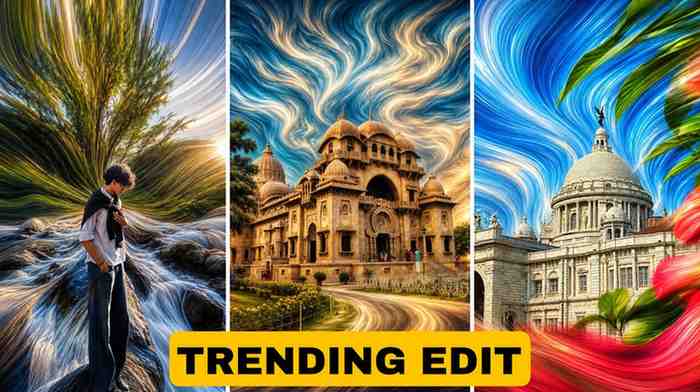
Pixels Stretch AI Photo Editing Prompt: You try to make a cool photo edit. You watch YouTube tutorials for hours. You try ten different apps. But the result? Still looks plain. Nothing like those wild, glowing, cinematic edits you see blowing up on Instagram every single day.
It feels bad, right?
Here is the truth — most people are doing it wrong. They are using old tricks. But the guys with 100K likes on a single reel? They are using pixels stretch AI photo editing prompts. And the prompts they use are not complicated at all. They are just smart.
Once you know the right prompt, you can get that stretched, distorted, cinematic look in literally two minutes. No Photoshop skills needed. No expensive software. Just the right words — typed into the right AI tool.
That is exactly what this guide is for. I am going to share the exact prompts I use, how I fix the mistakes I made when I started, and how you can make your photos look like they came out of a Hollywood movie.
Let us get into it.
What is the AI Pixel Stretch Photo Editing Effect?
Okay, let me explain this in the simplest way possible.
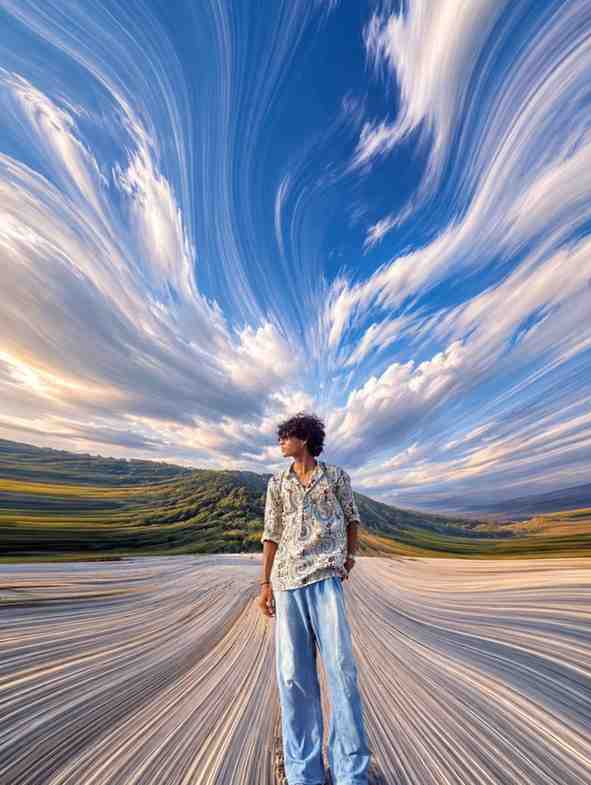
You know how sometimes a photo looks like it is being pulled apart from the sides? Like the pixels in the middle of the image are getting stretched and dragged, creating these long, horizontal streaks of color? That blurry, glowing, almost broken look?
That is the pixel stretch effect.
It started as a digital art style. Back in the early days, it happened by accident when image files got corrupted. But people saw it and thought — wait, this looks amazing. Slowly, it became a real editing style.
Now with AI, you do not need to corrupt any file. You just type a prompt and the AI understands exactly what kind of distortion you want. The result is this beautiful, cinematic, almost sci-fi kind of image that makes people stop scrolling.
The best part? When you add the pixel stretch effect to a photo of yourself — maybe you are standing on a rooftop, or in a foggy alley, or under neon lights — it looks absolutely unreal. In a good way.
This is why cinematic pixel stretch photo editing is everywhere right now. It is not just a filter. It is a full visual style.
Why Pixel Stretch is Trending in Cinematic Photo Editing
I still remember when I first saw a pixel stretch edit on Instagram. It was a guy, black outfit, standing in the rain. The background was completely stretched — streaks of orange and blue light running across the whole frame. His face was sharp. The rest? Beautifully chaotic.
I spent thirty minutes trying to figure out how he made it.
Turns out, he used an AI tool with a very specific pixel stretch photo prompt. That one prompt did more work than an hour of manual editing.
The reason this trend went viral is simple. It looks like something you have never seen before — but it also feels familiar, like a music video or a moody film frame. Human brains love that combination. New, but not confusing.
Also, these edits are fast to make. In 2025, people do not want to spend three hours on one photo. They want results in minutes. AI makes that possible. And when everyone can make cinematic edits quickly, the ones with the best prompts rise to the top.
The ai pixel stretch photo editing trend is also perfect for personal branding. If you are building a presence online, one or two of these edits in your feed changes the whole vibe immediately. It tells people — this person knows what they are doing.
How to Create Cinematic Pixel Stretch Photo Edits Using AI
Let me walk you through this step by step, the way I learned it.
First, you need a clear photo of yourself. Outdoor photos work best — especially if there is some light source like sunlight, streetlights, or neon signs in the background. Indoor photos can work too, but the background needs to have some color in it. A white wall with no texture? The effect will look flat.
Next, you choose your AI tool (I will talk about that in a second). Then you paste in a prompt. The AI processes your photo and applies the pixel stretch distortion to it. You adjust if needed. Then you download and post.
That is literally it.
The whole process takes about five to ten minutes. Sometimes even less, depending on how fast the AI tool renders your image.
The key is the prompt. A bad prompt gives you a muddy, ugly mess. A good prompt gives you that sharp, cinematic, pixel-distorted look that makes your photo feel like it belongs on a movie poster.
I learned this the hard way. My first few attempts looked like a broken TV screen. Not in a cool way. Just bad. But once I figured out the right words to use in the prompt, everything changed.
Best AI Tools for Pixel Stretch Photo Editing
There are a few tools I have personally used and tested. Let me be honest about which ones actually work.
ChatGPT (with image generation) is the one I use most. You can describe exactly what you want, and it understands complex prompts very well. The chatgpt cinematic photo editing results are honestly some of the best I have seen. The colors come out rich, and the stretch effect looks intentional — not accidental.
Adobe Firefly is good if you already use Adobe products. The quality is high, but the prompts need to be more technical. Not the best for beginners.
Midjourney is powerful but has a learning curve. Once you get used to it, the ai pixel stretch photo edit results are stunning. But it takes practice.
Bing Image Creator is free and surprisingly good for quick edits. Not the most advanced tool, but if you just want to test a prompt without spending money, start here.
My honest recommendation? Start with ChatGPT. The prompt flexibility is unmatched. And the image quality has gotten really good. You can even have a back and forth conversation — say “make the stretch more intense” or “change the background to purple neon lights” — and it listens.
Best AI Pixel Stretch Photo Prompts to Try Right Now
Okay, this is the part you have been waiting for. These are real prompts that I have used. They are tested. They work. They are the reason my photos started getting way more engagement.
I am giving you these for free, but please — do not just copy and paste without reading. Understand what each part of the prompt does. That way you can customize it later.
Try each one. See which look fits your vibe the best. Then we go to the next part — customizing these prompts to make them yours.
How to Customize Your Pixels Stretch AI Photo Editing Prompt
Now this is where you take control.
Every prompt has four main parts that you can change: the subject, the setting, the color palette, and the intensity of the stretch effect. Once you understand these four things, you can build any prompt you want from scratch.
The Subject is you, or whoever is in the photo. Describe the person simply. Age range, what they are wearing, their expression. The more specific you are, the better the AI understands.
The Setting is the background and location. This is where the pixel stretch effect happens most. The more interesting your setting, the better the distortion looks. Cityscapes, natural landscapes, foggy streets, rooftops — all work beautifully.
The Color Palette tells the AI what colors to use in the stretched pixels. This is huge for the mood. Warm colors (orange, gold, red) feel powerful and dramatic. Cool colors (blue, purple, cyan) feel mysterious and futuristic. Mix them for a surreal effect.
The Intensity is how strong the stretch looks. Words like “extreme,” “intense,” “heavy,” and “dramatic” push the effect further. Words like “subtle” or “gentle” give you a more restrained look — which is sometimes more elegant.
When I first started, I only thought about the subject. I ignored the other three parts. That is why my early edits were mediocre. The moment I started being specific about color and intensity, the quality jumped immediately.
Tips to Change Colors, Lighting, and Backgrounds in Your Prompts
Let me give you the specific words that actually change things in AI prompts. These are the words I add and remove to get different results.
For lighting changes, try adding: “dramatic rim lighting,” “soft natural light,” “harsh contrast shadows,” “backlit silhouette,” “golden hour glow,” or “neon-lit face.” Each one gives you a completely different mood.
For color changes in the pixel stretch, be very direct. Instead of saying “colorful background,” say “background stretched into deep violet and electric blue streaks.” The more specific the color name, the better the result.
For background swaps, just replace the setting in your prompt. You can go from a city street to a desert at sunset with just a few words. The pixel stretch effect adapts to whatever background you choose.
One thing I learned — never ask the AI to change too many things at once. If you want a different color AND a different setting AND a different lighting style, make one change at a time. Test it. See the result. Then adjust again. This way you understand what each part of the prompt is doing.
Also, always end your prompt with quality descriptors. Things like “4K resolution,” “ultra-realistic,” “cinematic color grading,” “film grain,” “high detail” — these words push the AI to give you better quality output. They cost nothing to add, but they make a real difference.
How to Get the Perfect Cinematic Look in Pixel Stretch Edits
Getting that true cinematic look is about more than just the pixel stretch. It is about the whole feel of the image.
Cinematic photos have specific qualities. High contrast. Deep shadows. A slightly muted color palette (not super saturated, but rich). And most importantly — a clear subject against a dynamic background.
When writing your ai pixel stretch photo prompt, always make sure the subject is described as sharp and in focus. Write things like “the subject is crystal clear,” “ultra sharp facial detail,” or “sharp foreground subject.” This tells the AI to keep the person looking real while the background goes wild with distortion.
The best cinematic pixel stretch edits I have made all share one thing: there is a clear story. The person is doing something or feeling something. Even if it is just a look on their face. A confident stare. A side profile. Looking up at the sky.
When there is emotion or intent in the subject, the distorted background feels like an extension of that emotion. The photo becomes more than an edit — it becomes a statement.
That is the difference between a good edit and a viral one.
Common Mistakes to Avoid in AI Pixel Stretch Photo Prompts
I made all of these mistakes so you do not have to.
Using vague prompts. “Make my photo look cool with pixel stretch” gives you garbage results. The AI has no idea what cool means to you. Be specific. Always.
Forgetting the subject focus. If you do not tell the AI to keep the subject sharp, the whole photo might come out blurry and distorted — including your face. Not the goal.
Overloading the prompt. Trying to describe fifteen things at once confuses the AI. Keep the core idea clean. Add details one by one.
Ignoring the lighting. Lighting is everything in photography. If you do not mention it, the AI picks something random. Most of the time, that random choice does not match the mood you want.
Using low quality source photos. The AI works better with clear, well-lit original photos. If your source photo is blurry or dark, the final result will be worse. Good input gives good output.
Not iterating. Your first result is almost never your best result. Always go back, adjust the prompt slightly, and generate again. The second or third version is usually much better.
I wasted a lot of time in my early days thinking that if a result looked bad, it meant the tool was bad. It was not the tool. It was my prompt.
Conclusion:
The pixels stretch AI photo editing prompt trend is not going anywhere. If anything, it is getting bigger. More people are discovering it every week. And the ones who learn to use it well — they are the ones building real audiences online.
You now have everything you need. The prompts are there. The tips are there. You know what mistakes to avoid. You know how to customize for your own style.
Just start. Pick one prompt from this guide. Try it today. See what you get. Then adjust and try again.
The first time I got a truly great pixel stretch result, I genuinely could not believe I had made it. It looked professional. It looked like something I would see in a magazine. And I made it in under ten minutes.
That feeling is waiting for you too.
Go make something great.