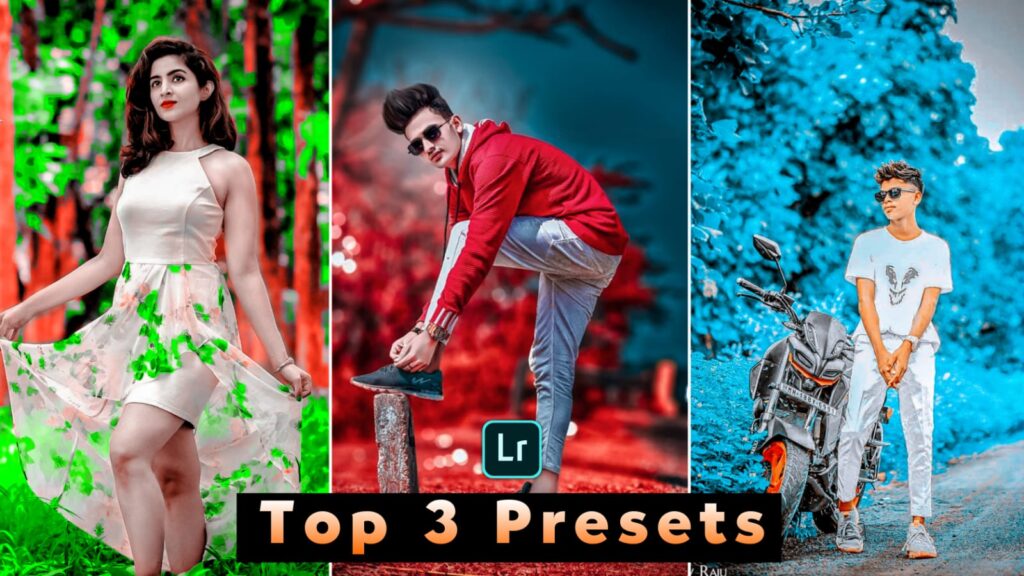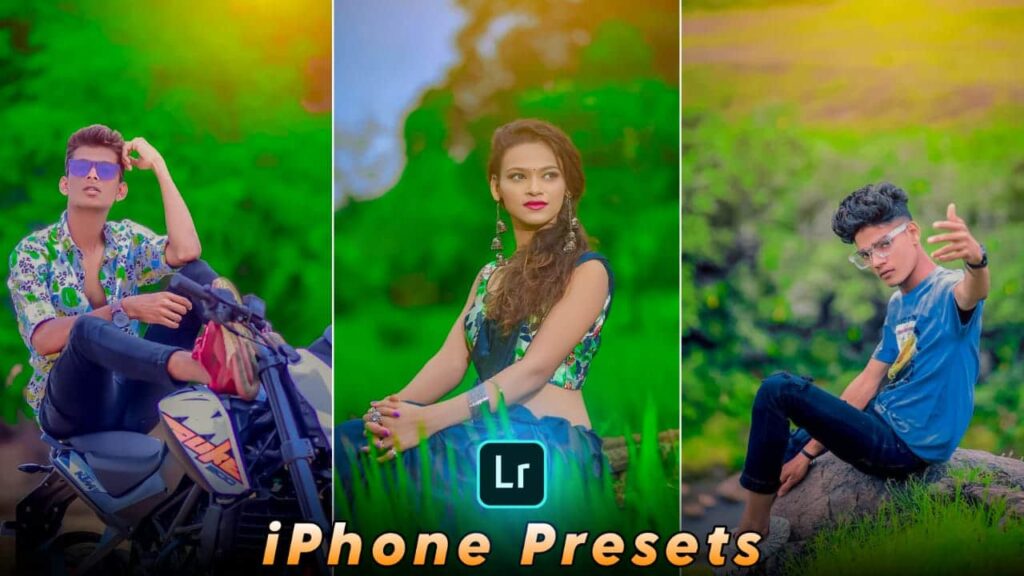
Welcome to PABITRA EDITOGRAPHY! If you want to transform your ordinary photos into stunning, cinematic masterpieces with a single click, you are in the right place.
In this article, you can download the exclusive Moody brown Lightroom Preset for free and learn how to use it effortlessly on Lightroom Mobile and PC. Whether you are a beginner or an experienced creator looking to speed up your workflow, this guide covers everything you need to know about professional yellow-tone color grading.
What is a Moody Brown Lightroom Preset?
The Moody Brown tone is one of the most popular aesthetic color grades for portrait, travel, and street photography. It creates a warm, cinematic atmosphere by balancing rich golden-yellow highlights with deep, moody shadows.
Instead of manually adjusting sliders for hours, you can use our pre-made Lightroom preset to apply this professional look instantly with just one click.
What Is Lightroom ?
Adobe Lightroom is a powerful, industry-standard photo editing application developed by Adobe. Available for Android, iOS, Windows, and macOS, Lightroom provides professional-grade tools to retouch, enhance, and color-grade your photos seamlessly.
With features like non-destructive editing and one-click Lightroom Presets, turning a normal, flat image into a gorgeous, high-end photograph has never been easier.
How To Edit Photo In Lightroom Mobile App ?
Lightroom Mobile Tools Explained
Most tools you can see in the downside & here have 15 tools . Now I’m going to talk to you some important tools.

- Auto Tool – By the click on the auto tool in your photo will a automatically light adjust & you can undo this by click on undo option that you can find at the top side.
- Light Tool – Light tool is for light adjustment of your photo’s just you have needed to manually adjust lights here have many options like Exposure , Contrast, Highlight, Shadow, whites & Blacks you have to hold on the line & slide left or right & select the effects amount according to your photo.
- Color Tool – Color tool is a great tools of this app Temp, Tint, Vibrance & Saturation have here & the best tools of Lightroom’s called Mix Tool is here.
- Mix Tool – In mix tool have totally Eight colors & here you can change & correction your photo’s colors by this tool. Which color of your photo’s you want to change simple click on the color & here have three options of every color these are Hue, Saturation & Luminance . Hue is for change the color Saturation for the doing that color faid & more deep & Tempareted Lumiance for the doing that color’s dark or Light.
Apart from these tools, there are various other tools like…
- Masking Tool
- Healing Tool
- Crop Tool
- Presets
- Effects Tool
- Detail Tool
- Optics Tool
- Geometry Tool
- Profiles Tool….etc.
Quick Edit In Lightroom Mobile
Here have a amazing Features In Lightroom app & by this feature you can edit your photo by one click. Just you have needed to open a Lightroom preset in Lightroom app then click on the top right side’s three dot simply click on there & then you will see many options just you have needed to find out Copy Settings. Then you have needed to add your new photo which you want to edit then simple click on the three dot that you can see on the top right side the click on Paste Setting wait few second & now your photo is complete.
What Is Lightroom Preset ?
Hello friends if you want to edit your photo in a click then you have needs a Lightroom Presets. By the using the Lightroom presets you can easily colour grade in any color so easily. Let’s see how you can use those Lightroom presets.
How to use Lightroom presets
Hello friends if you want to edit your photo in a click then you have needs a Lightroom Presets. By the using the Lightroom presets you can easily color grade in any color so easily. Let’s see how you can use those Lightroom presets.
- First of all open Lightroom app, if haven’t Lightroom app in your mobile then you can download it from play store.
- After open the Lightroom app click on the add photo option & add your photo in Lightroom app.
- Then in which types color grade you want to do on your photo just add those color tone presets in Lightroom app from right side add photo option.
- Then, which presets you added in Lightroom app just open the preset.
- After open the preset click on the upper sides three dot options & click on the copy setting option.
- Now open that photo which you want to color grade and just click on the three dot of top right sides & click on the paste setting.
- Now you can see your photo’s color grade complete
- By the following uppers steps you can easily color grade your photo in a shot time, attractively.
System Requirement
This system must be in your mobile to run the lightroom app.
| Android Mobile | iOs Mobile |
| Android OS 4.1 | iOS 9 |
| 1 GB Ram in Your Phone. | iPhones – 4s, 5, 5s, 6, 6s……etc. |
| 8 Gb internal memory in your mobile. | iPods – iPods Touch 5th Generation. |
How To Download Moody Brown Preset Lightroom Mobile ?

- First of all click on the download option below.
- Then the file will be downloaded automatically.
- so guys go and use these preset lightroom mobile moody brown.
How To Save Photo In Lightroom Mobile App ?
It’s very simple, simply click on the share option that you can see at the top right side. Click their & then click on the Save to device. Now your photo is saved in your device.
Let us know in the comment section how was those moody brown preset lightroom mobile & we always try to make best preset for all of yours
If any color tone preset isn’t available here then you can tell us in the comments section. we’ll try to upload that preset as soon as possible. Thanking you for visiting our website. Thank you