When Diwali comes, social media fills up with lights, lamps, and colorful firework pictures. If you also want to decorate your photo with the light of this festival, then you need a nice Diwali background for editing. In this article, you will see HD backgrounds made for the new trends of 2026, their features, and easy ways to save them on your phone. You will also get a step by step guide to edit photos in the Picsart app, three ways to remove backgrounds, and ways to make your own backgrounds using AI prompts. If you are new or if you are skilled, this guide will help you edit your special Diwali photos. Let us start.
What Is a Diwali Background for Editing and Why Is It So Popular?
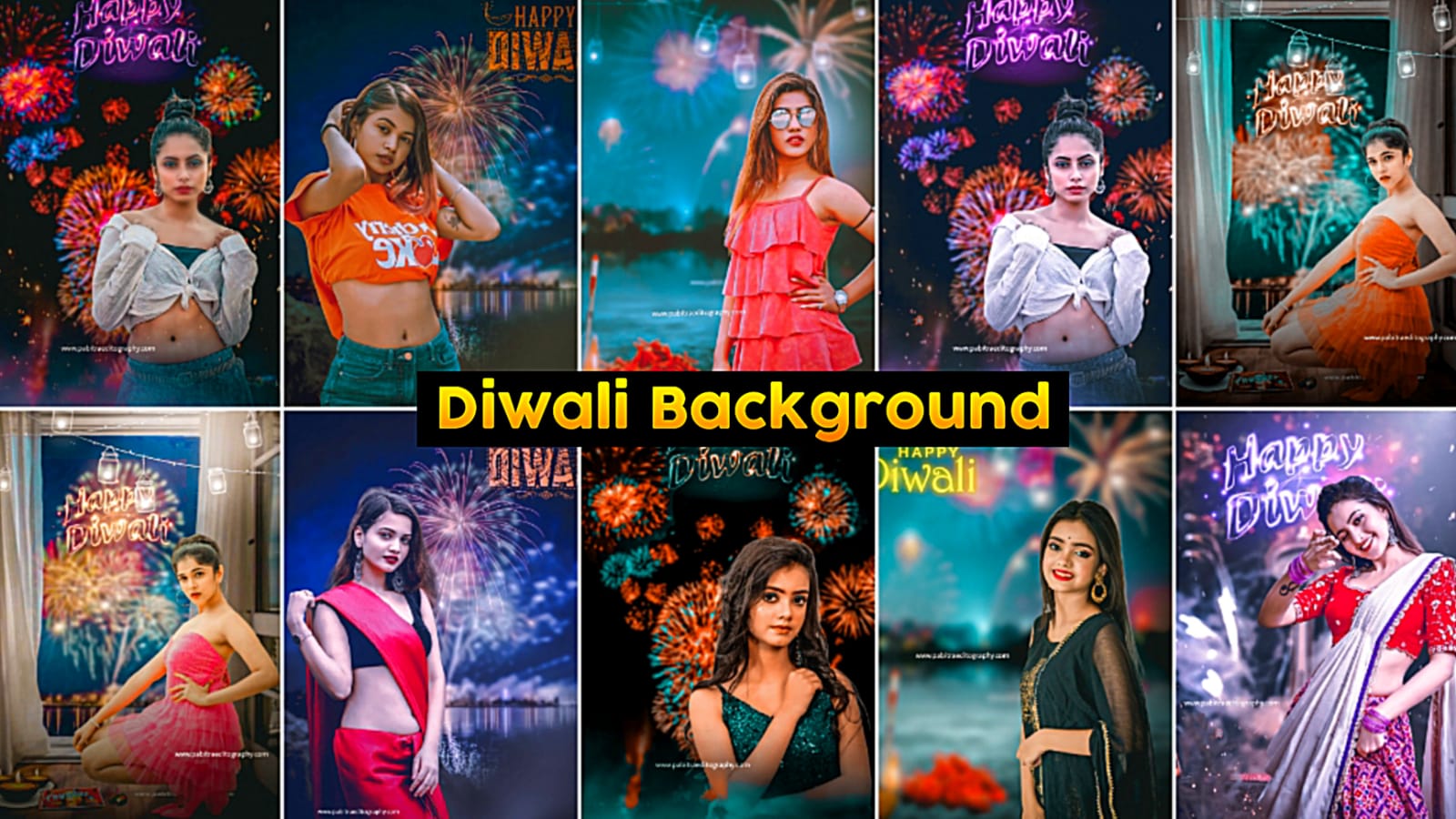
A Diwali background for editing is a ready made HD picture where you can put your own photo to bring the festival feeling fast. It has burning lamps, rangoli designs, sky lanterns, flower garlands, and a night sky decorated with bright lights. You do not need to spend money or time going to a photo studio. With just a normal portrait photo and a good background, you can get a clean look on your mobile phone in a few minutes. It fits well for WhatsApp status, Instagram reel covers, Facebook posts, or family greeting cards. The demand goes up before Diwali every year because everyone wants their photo to look special in the crowd.
Special Features of These Backgrounds
These backgrounds are picked carefully so that you do not face extra trouble during editing. Look at the best features below.
- Full HD quality: The image does not blur even when you zoom in, and it stays clear in print.
- Mobile friendly size: It opens directly in Picsart, Snapseed, and Lightroom.
- Empty space in the middle: A separate space is kept in the design to place the photo of the person.
- Warm and balanced colors: Golden and orange tones easily match different skin colors.
- Many styles: Separate designs for boys, girls, couples, and family pictures.
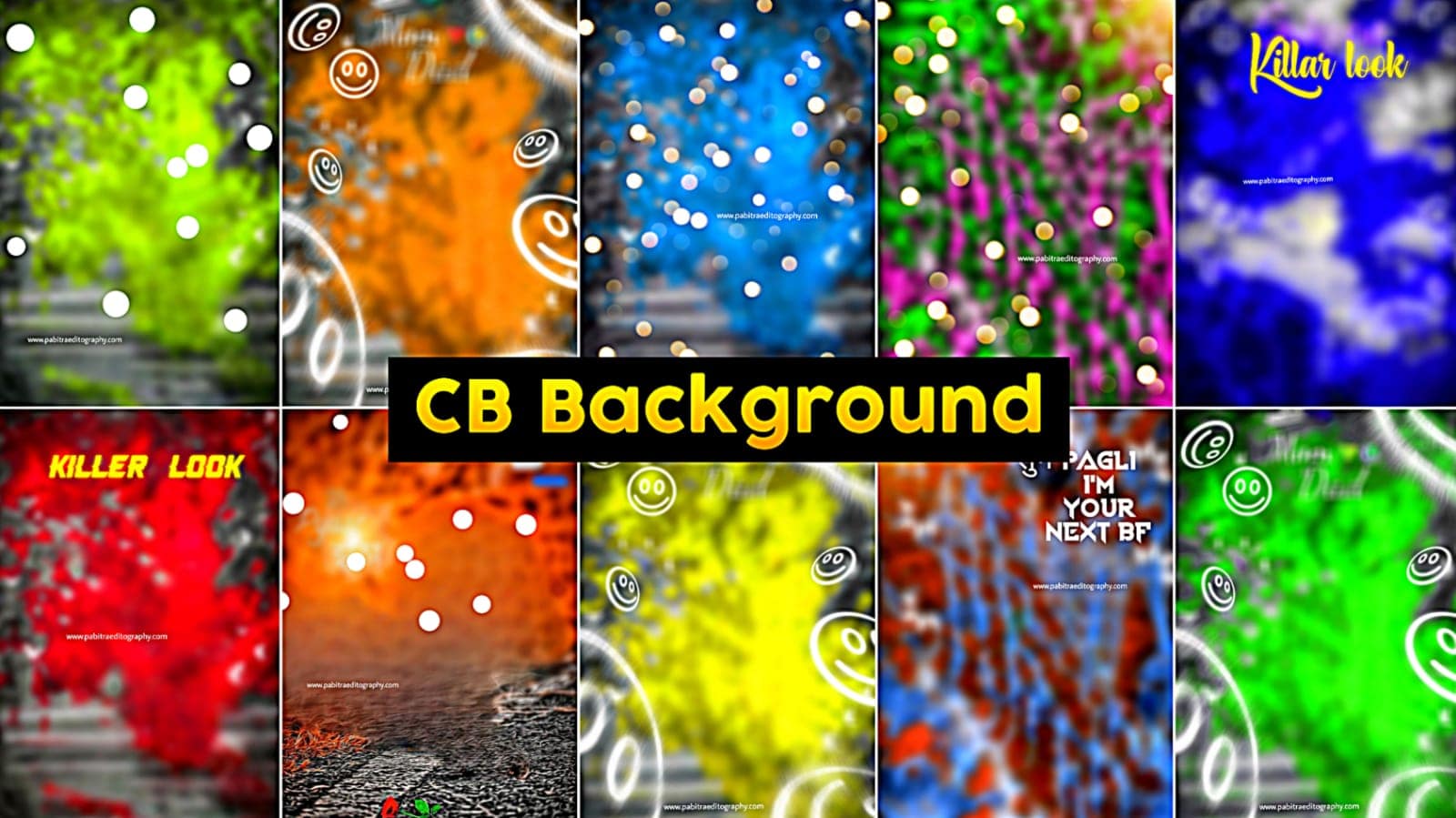
- CB style and moody tone: A special collection for a modern cinematic look.
- Suitable for all platforms: Useful for status updates, reels, and posts.
Popular Types of Diwali Backgrounds in 2026
This year, some designs have the highest demand in photo editing. Choose the type that matches the mood of your photo.
- Lamps and diyas: Lines of clay lamps and soft glows of light, best for home photos.
- Rangoli background: Colorful art patterns, matches well with sarees or traditional dresses.
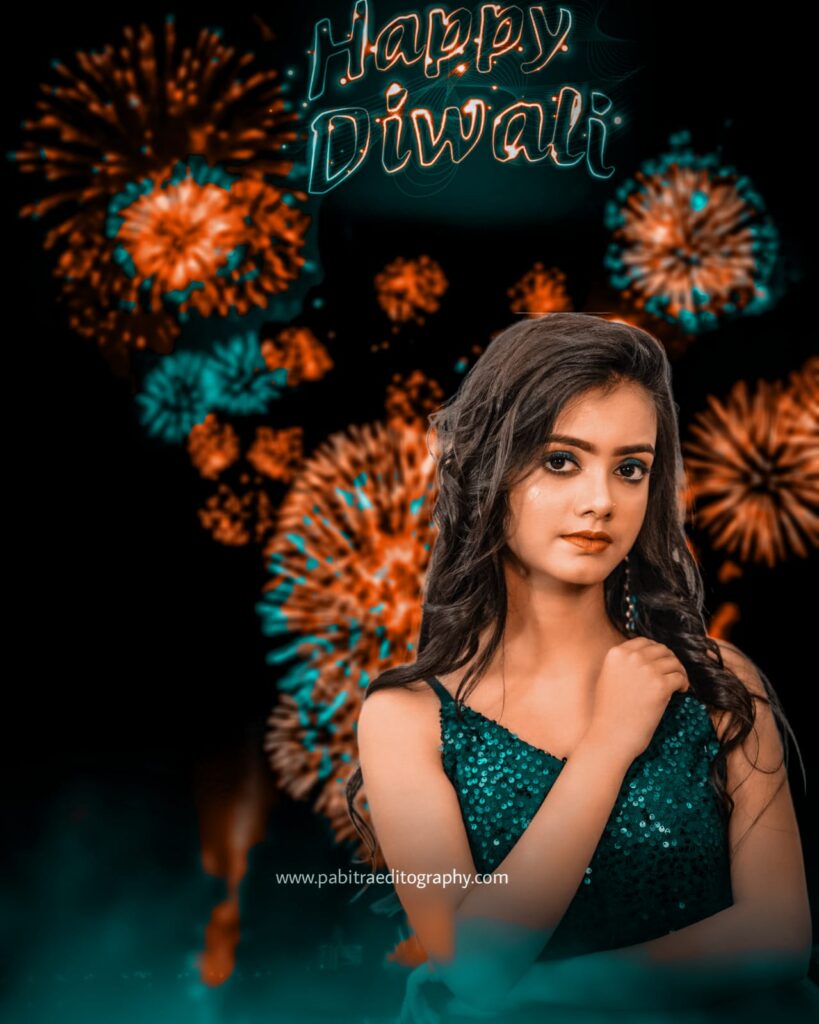
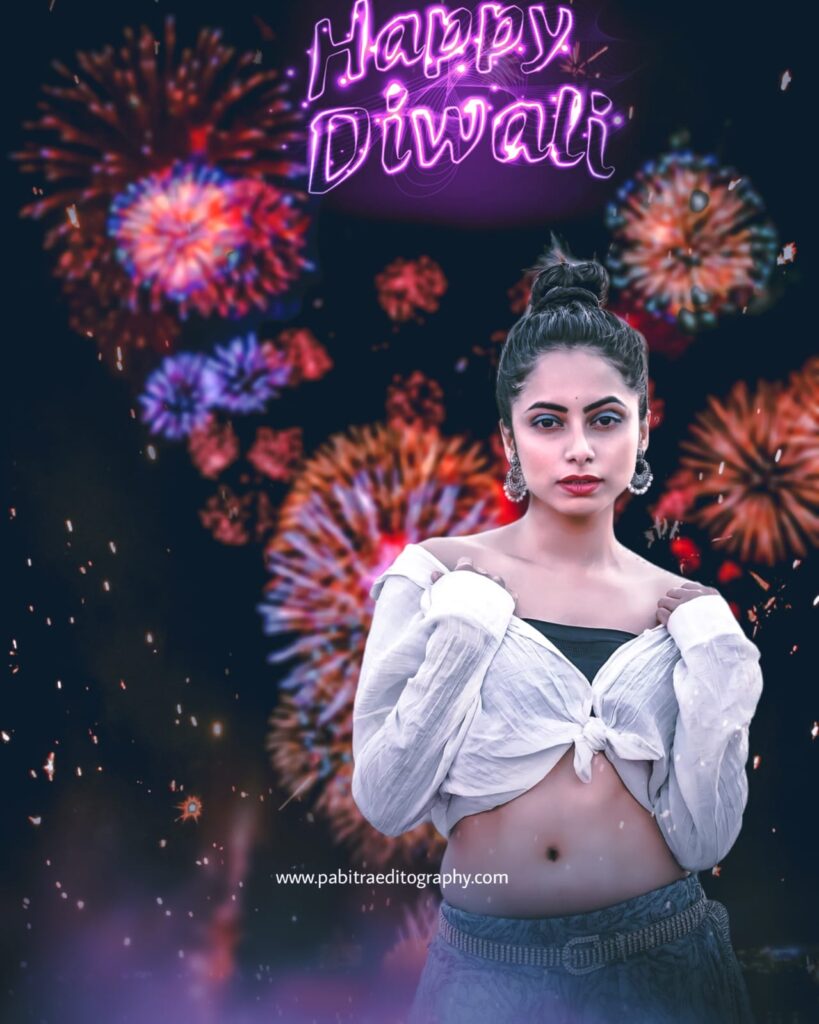
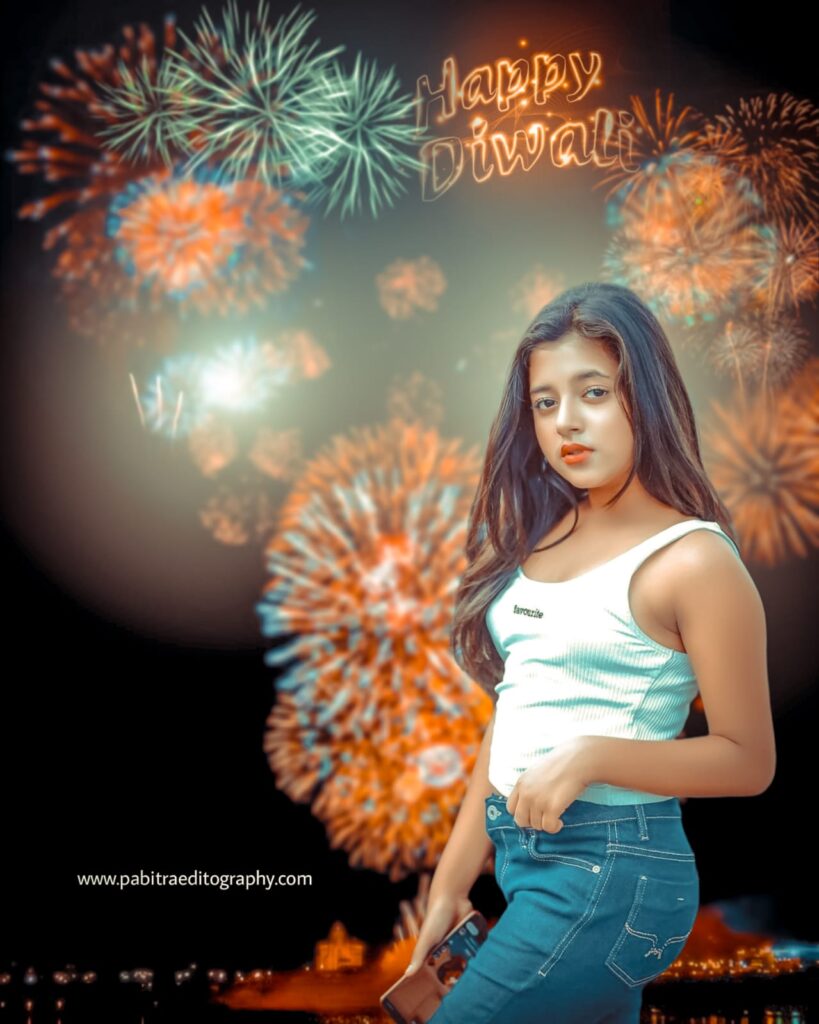
- Fireworks and night sky: Bright sparklers and a sky full of light, ideal for couple and group photos.
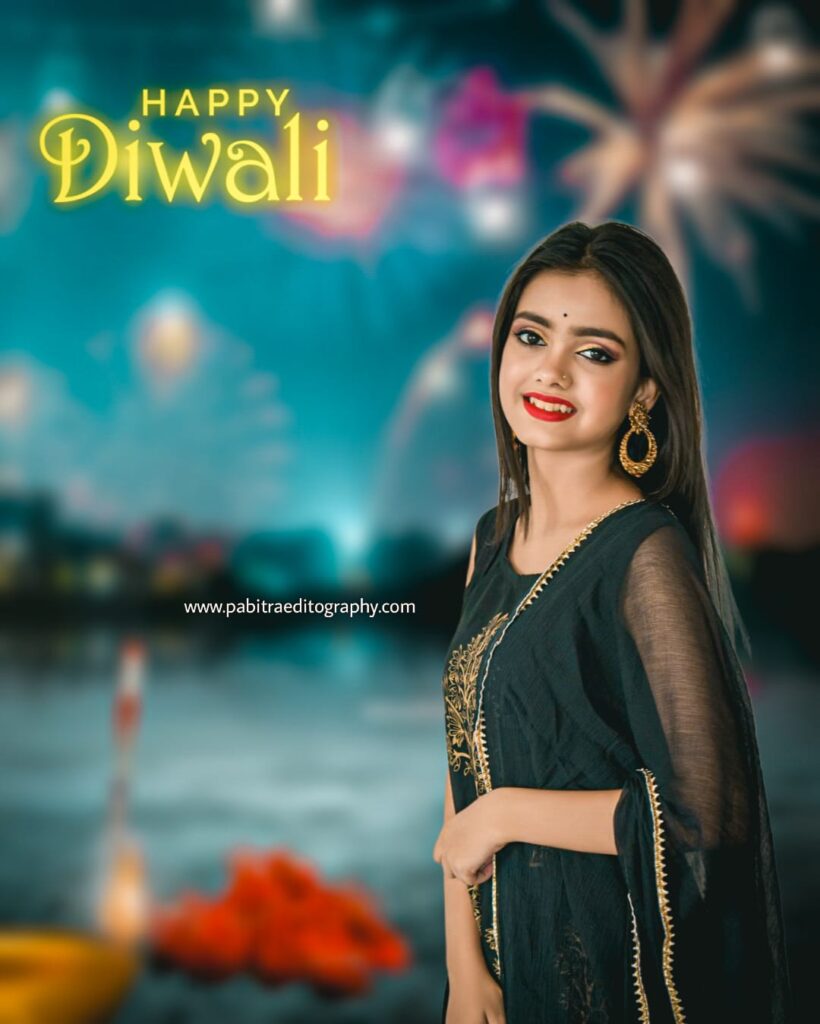
- Bokeh and fairy lights: Blurry circles of light, brings a dream feel to portrait pictures.
- CB dark moody: Dark cinematic look, very popular for boys photos.
- Lakshmi puja decoration: A worship setup with flowers, pots, and floor art.
Easy Rules to Save Backgrounds on Mobile
It is very easy to save your favorite background to your phone gallery. Follow these steps.
- Tap on the word Background at the very bottom of this article, and the full collection will open.
- Tap on the photo you like to open it in a big size.
- Hold your finger down on the photo for a little time.
- From the menu that comes up, select Save Image.
- Now you will find the picture in your gallery or photos app.
If you are on a computer, right click on the photo and select Save image as. After saving the image, you can open Picsart directly and begin editing.
Diwali Photo Editing with Picsart: Step by Step
It does not take long to learn Diwali editing with Picsart. Follow this method.
- Open the Picsart app and tap on the plus icon at the bottom.
- Pick the saved Diwali background from your gallery.
- Go to the Add Photo option and add the cut photo of the person with the background removed.
- Pull with two fingers to fix the size and placement of the photo.
- In the Adjust tool, balance brightness, contrast, and warmth so the light of the person matches the background.
- Soften the edges and add shadows, so the picture does not look separate.
- Add PNG stickers of lamps, lanterns, or sparkles, and write Happy Diwali using the Text tool.
- At the end, save the photo in HD quality and share it.
3 Ways to Remove Background in Picsart
Before placing the new background, you must remove the old background of the person. There are three simple ways in Picsart.
- Cutout tool: Turn on the internet and choose Cutout, then tap on the person in the photo. The app will cut it by itself. If you want to cut by hand, choose the Outline option, draw a line around the person, and press the arrow in the right corner.
- Free Crop and brush: Open Free Crop from Tools, fix the brush size, and paint over the person. The painted area will turn red. At the end, press the top arrow to save.
- Eraser in Draw tool: Go to the Draw tool and select Erase, set the size and opacity, and rub on the parts you want to remove.
Editing Tips with Snapseed and Photoshop
Apart from Picsart, you can do great work with the same backgrounds using Snapseed and Photoshop. These tricks will help in both tools.
- Double Exposure in Snapseed: Open the background, go to Tools then Double Exposure to add your photo, then set the opacity.
- Selective in Snapseed: To make the face brighter, tap the Selective tool and turn up the brightness.
- Layer Mask in Photoshop: Place the layer of the person over the background and smooth the edges with a mask.
- Color Match in Photoshop: Match the colors of the person with the golden tone of the background.
- One rule for all tools: Make sure the light on the person and the light in the background come from the same side.
Common Mistakes in Photo Editing and Solutions
New editors often make some small mistakes that make the photo look fake. Stay away from these.
- Rough edges: Blur or feather the edges of the cut picture to keep them soft.
- Light does not match: Increase the warmth of the person to fit the light of the background.
- Missing shadows: Put soft shadows near the sides or under the feet.
- Low resolution pictures: Putting a blurry photo on an HD background makes the difference easy to see, so pick clear photos.
- Too many stickers: Adding too many PNG items makes the picture crowded, two or three are enough.
All Diwali Backgrounds in One Place
For people who are looking for backgrounds for Diwali special photo editing, all designs are gathered here in one place. You will find lamps, rangoli, fireworks, and CB styles here. If you click on the text below, the whole collection will open. From there, tap on the picture you like, save it, and start working in Picsart or any other editing app.





Conclusion
A good background is the biggest help to give your photo a fresh look in the light of Diwali. In this article, we covered the types of Diwali backgrounds for editing, their features, rules to save them, step by step editing in Picsart, and AI prompt tricks. Now pick your favorite design, complete your edit, and share it with your friends. If you face any problem at any step, write in the comments. Happy Diwali.
Frequently Asked Questions (FAQ)
You can use it in Picsart, Snapseed, Lightroom, and Photoshop.
All backgrounds are Full HD, so your edited pictures will stay sharp.
Tapping on the person in the Cutout tool of Picsart completes the job.
Yes, if you write clear prompts, you can get the background you want in ChatGPT or Gemini.